
Introducing Command Center
Every school runs on the same little dance. A parent texts a teacher that their daughter has a dentist appointment. The teacher forgets to tell the office. The office marks her absent. The parent gets an automated "your child was absent" alert and calls in, annoyed. Multiply that by every appointment, every family trip, every kid who's just running late, and attendance becomes a stack of sticky notes nobody trusts.
Command Center replaces the whole dance. Families request an excused absence from their portal in under a minute. The right admins get an email the moment it lands, with a button that drops them onto that exact request. You approve or reject it — with a note — from a single tabbed dashboard that also holds your live stats, your searchable attendance ledger, a profile for every student, and a compliance view for every class. Approve a request and the covered days are flagged right on the teacher's grid, so nobody's surprised by an empty seat. Here's the whole journey, start to finish, on our demo school's data.
1. A family asks — in under a minute
It starts in the family's portal. On a child's page, a parent taps Request Absence and a clean modal opens. They pick one of four kinds of absence — Full Day, Multiple Days, Late Arrival, or Early Departure — and the form morphs to fit: a single date, a range, or an arrival/departure time. They choose from ten ready-made reason categories (Illness/Medical, Travel, Bereavement, a legal appointment…), add a note if they want, and tick two short acknowledgments: that submitting isn't the same as being excused, and that the student still owes any missed work. The Submit button stays disabled until both are checked.
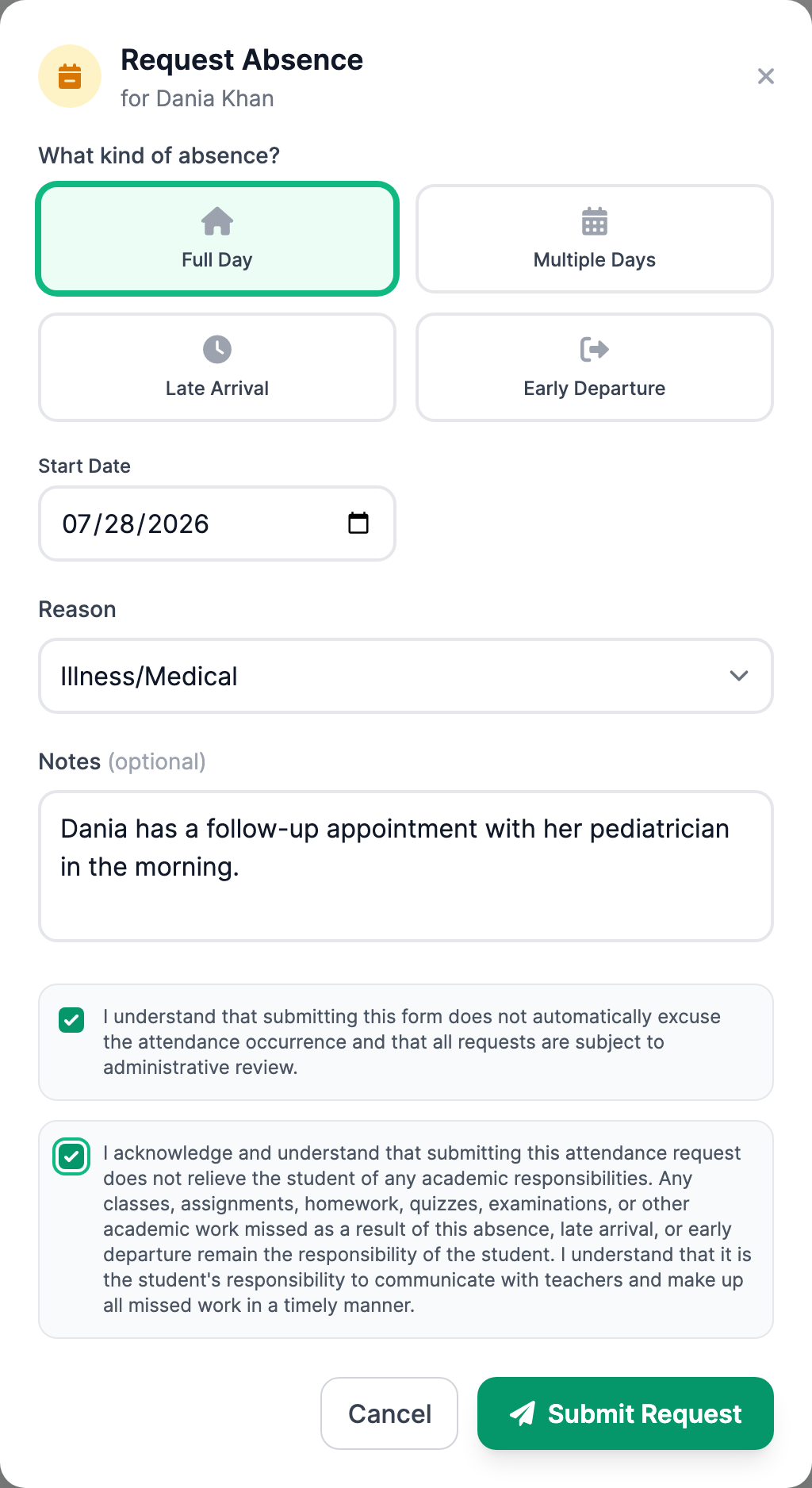
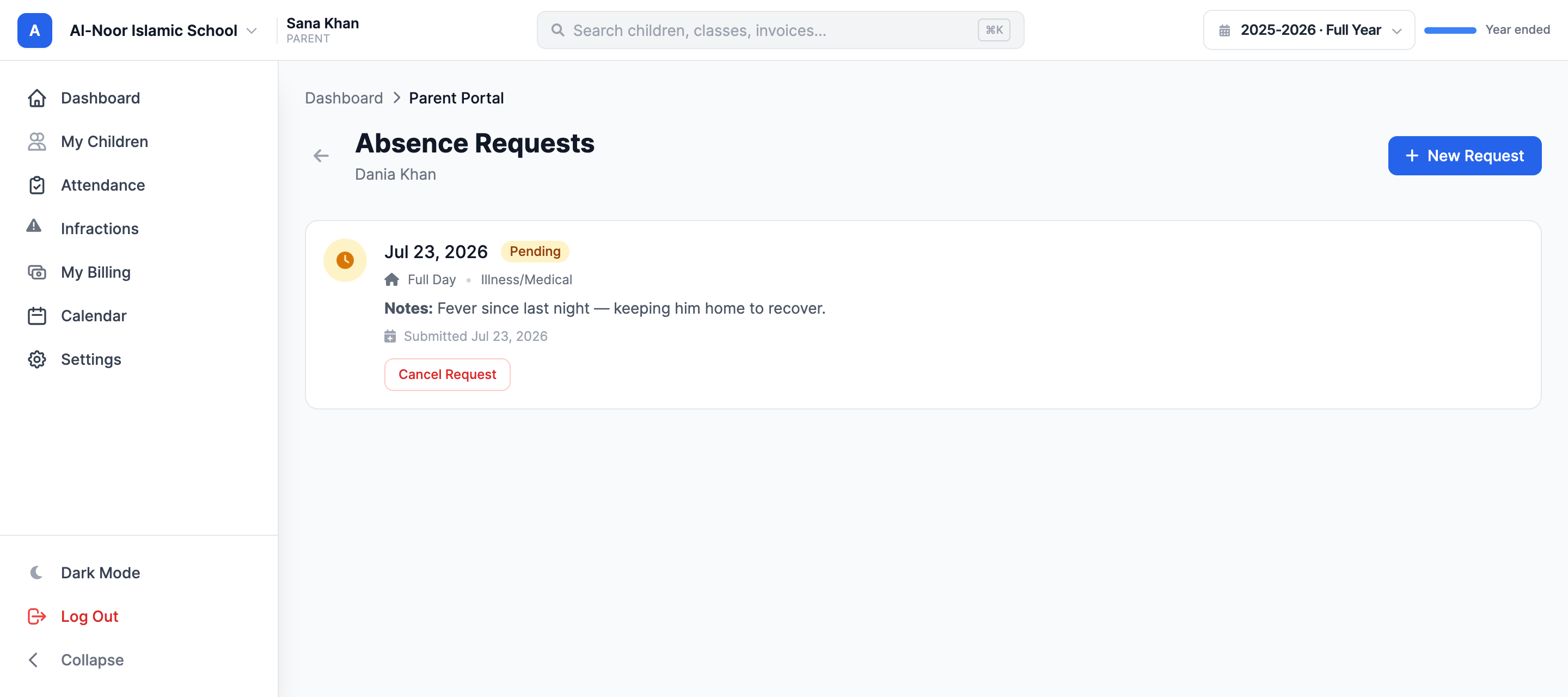
Students with their own login can submit requests too — a responsible teenager shouldn't need to route a dentist appointment through a grown-up, and every request records exactly who asked. Once it's in, the family sees it in a running list with a status chip on every row: Pending, Approved, Rejected, or Cancelled — and a pending request can be cancelled right there. No more wondering whether the office got the message.
2. The emails that fire, automatically
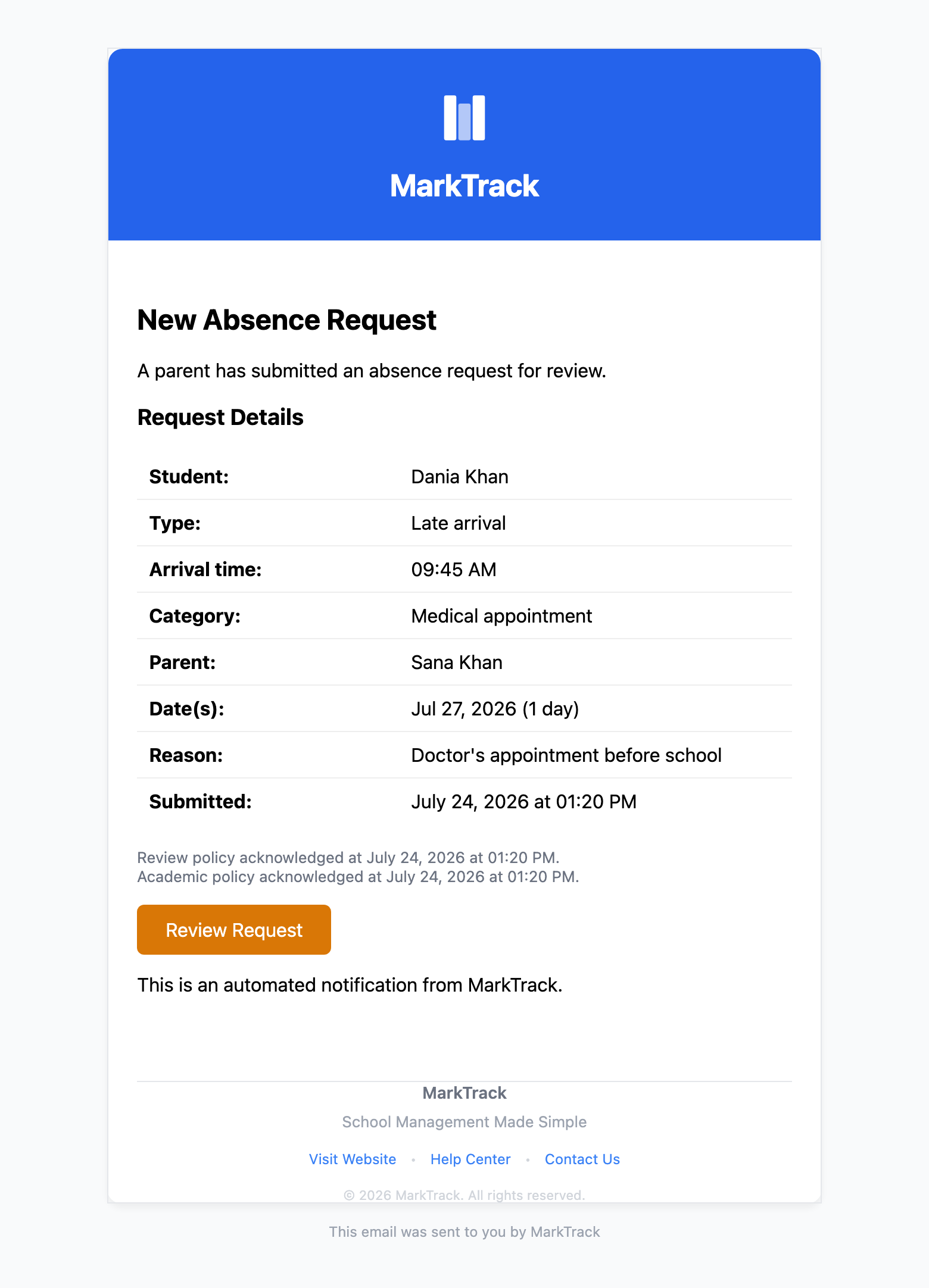
The instant a request is submitted, the emails go out on their own. The family gets a branded receipt confirming exactly what they asked for — pending review, not yet excused. And the admins you've configured get a New Absence Request email with the full detail: student, type, category, who requested it, when, and the timestamp of each acknowledgment the family agreed to. At the bottom sits one button — Review Request — that drops them straight into the Command Center on that exact request. No hunting, no logging in and clicking around.
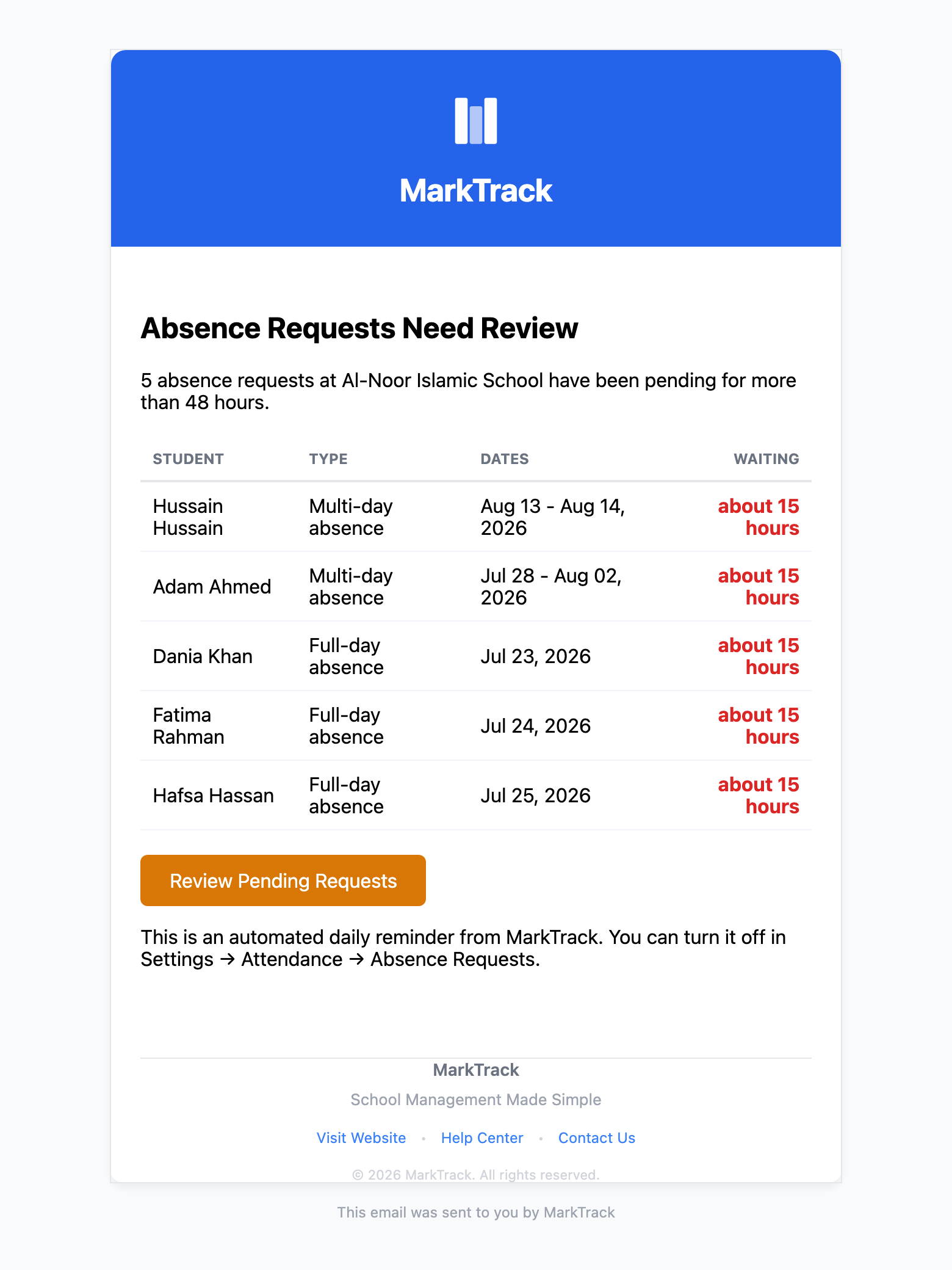
Decisions email back the same way: approve or reject a request and the family gets the outcome with your note attached, so nobody refreshes a portal waiting for news. And if a request sits pending for more than 48 hours, MarkTrack can nudge the reviewers with a daily reminder digest of everything still waiting — the polite version of a sticky note on your monitor.
3. The Command Center opens on the Overview
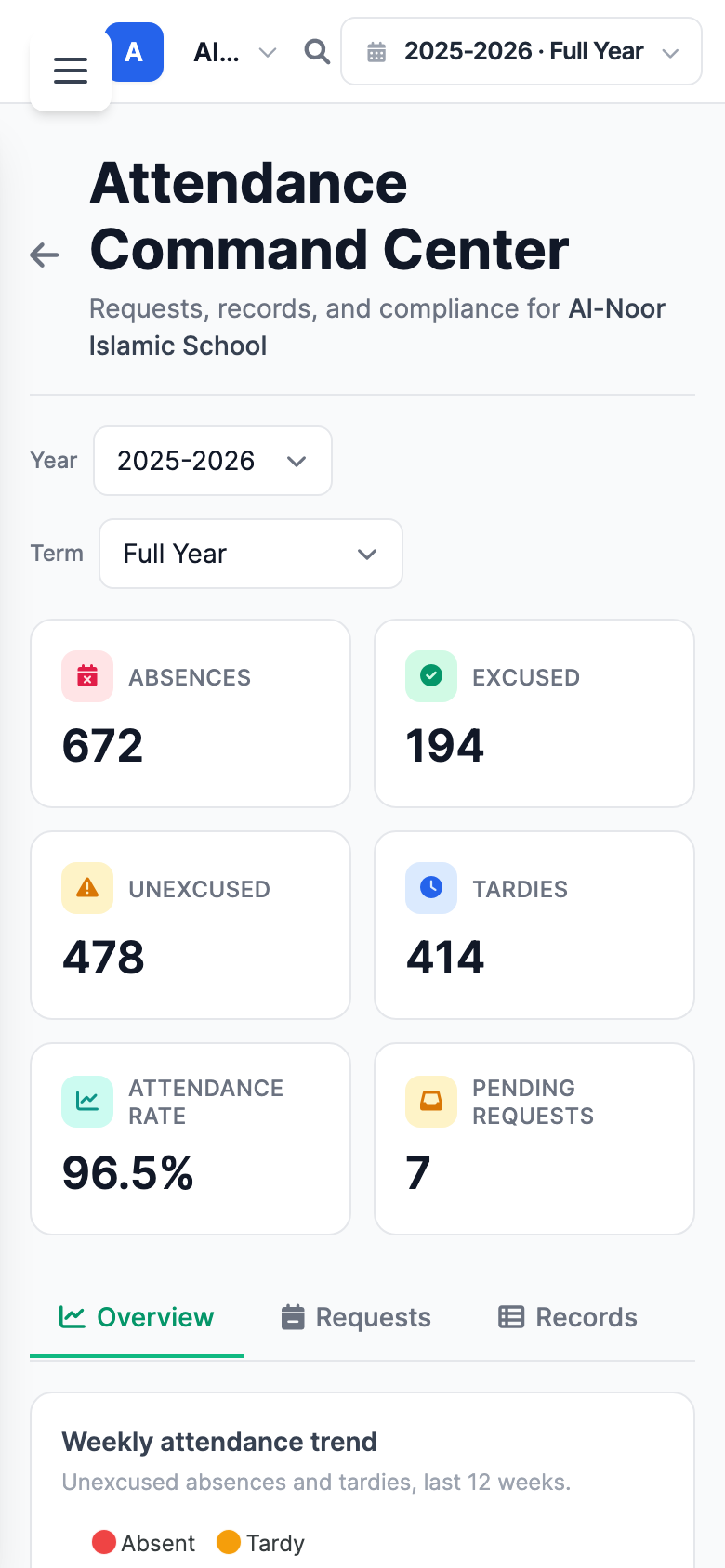
Click that button — or just open Attendance → Command Center — and you land on the Overview. Across the top is a live KPI strip for the year or term you've filtered to: absences, excused vs. unexcused, tardies, your overall attendance rate, and how many requests are waiting on you. Below it, a weekly trend line, a status-breakdown donut, and attendance rate by level tell you at a glance where the problems live. A Pending requests card surfaces the queue without leaving the page.
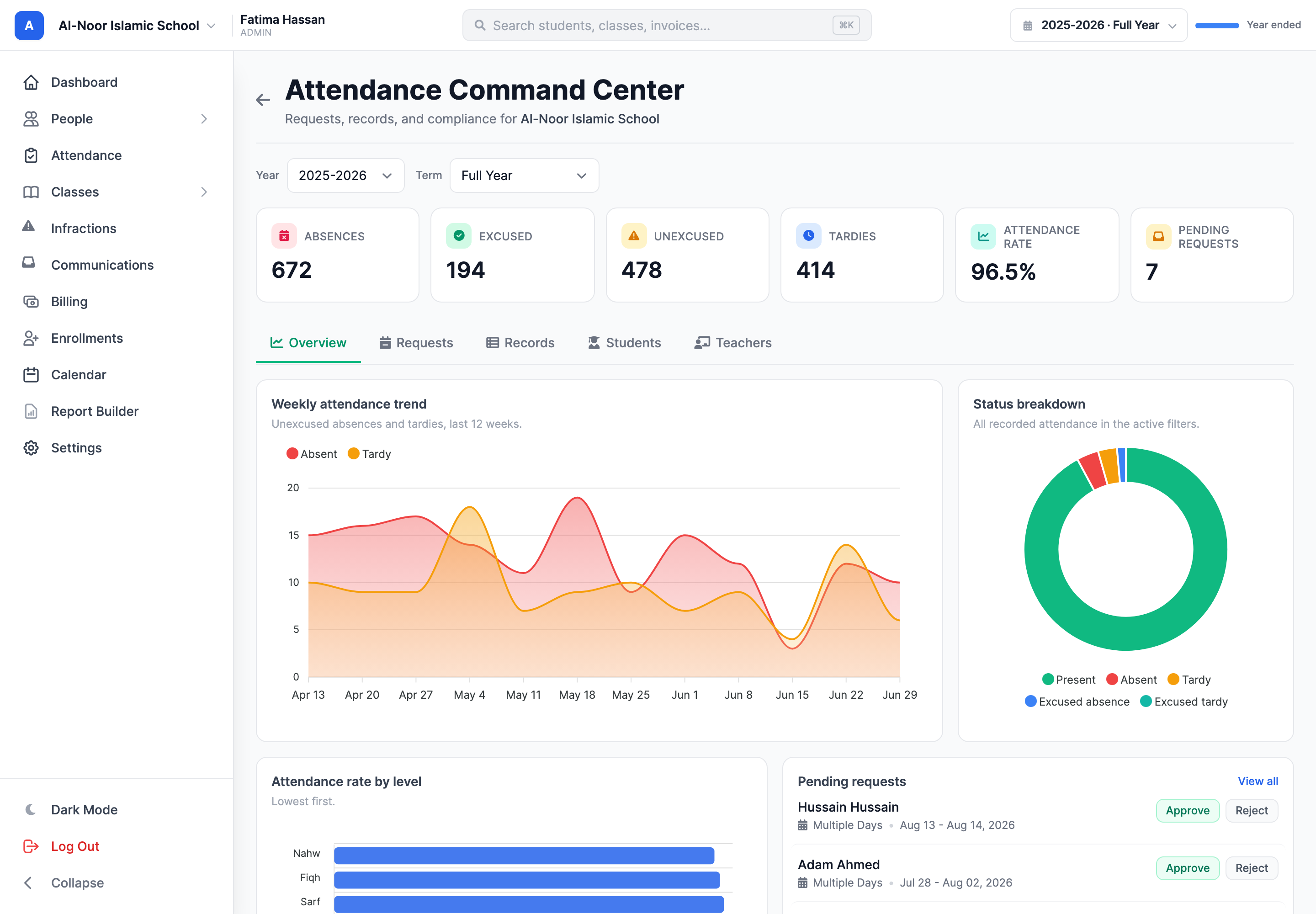
Every tab reads from the same filtered slice — the year and term you picked at the top — so the numbers always agree. The pending count in the KPI strip is the same set of requests you'll find in the queue; the excused figure is the same rows you can export from Records. There's no reconciling two systems, because there's only one.
4. Requests: the queue, and the drawer where you decide
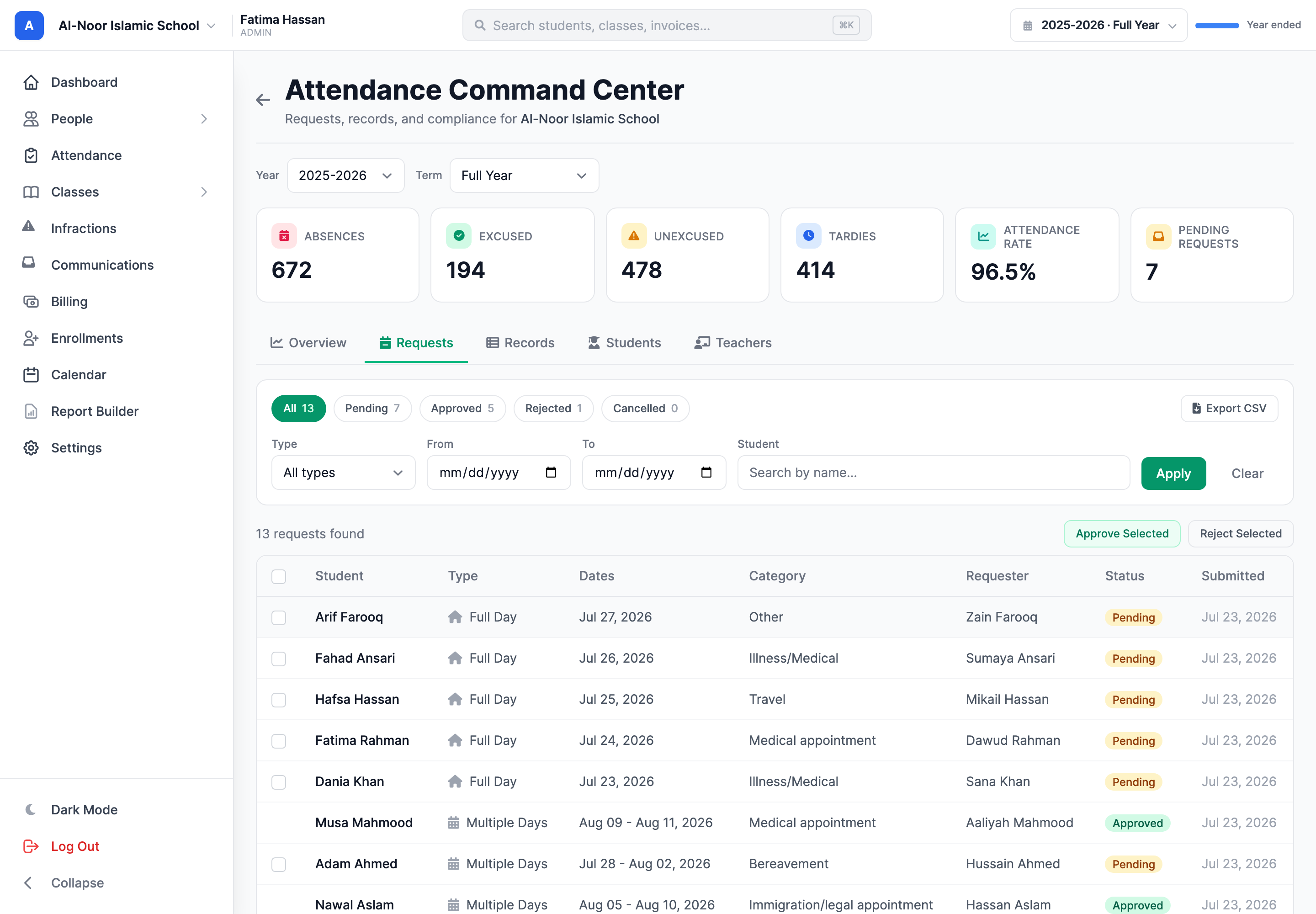
The Requests tab is the working queue. Filter by status, type, date range, or student name; tick several and approve or reject them in bulk; export the lot to CSV. Each row shows the dates, the type, the category, who submitted it, and its status chip. Our demo school's queue runs thirteen deep — seven still pending, five approved family trips and appointments, and one that got turned down — and the status counters at the top let you jump straight to the pile that needs you.
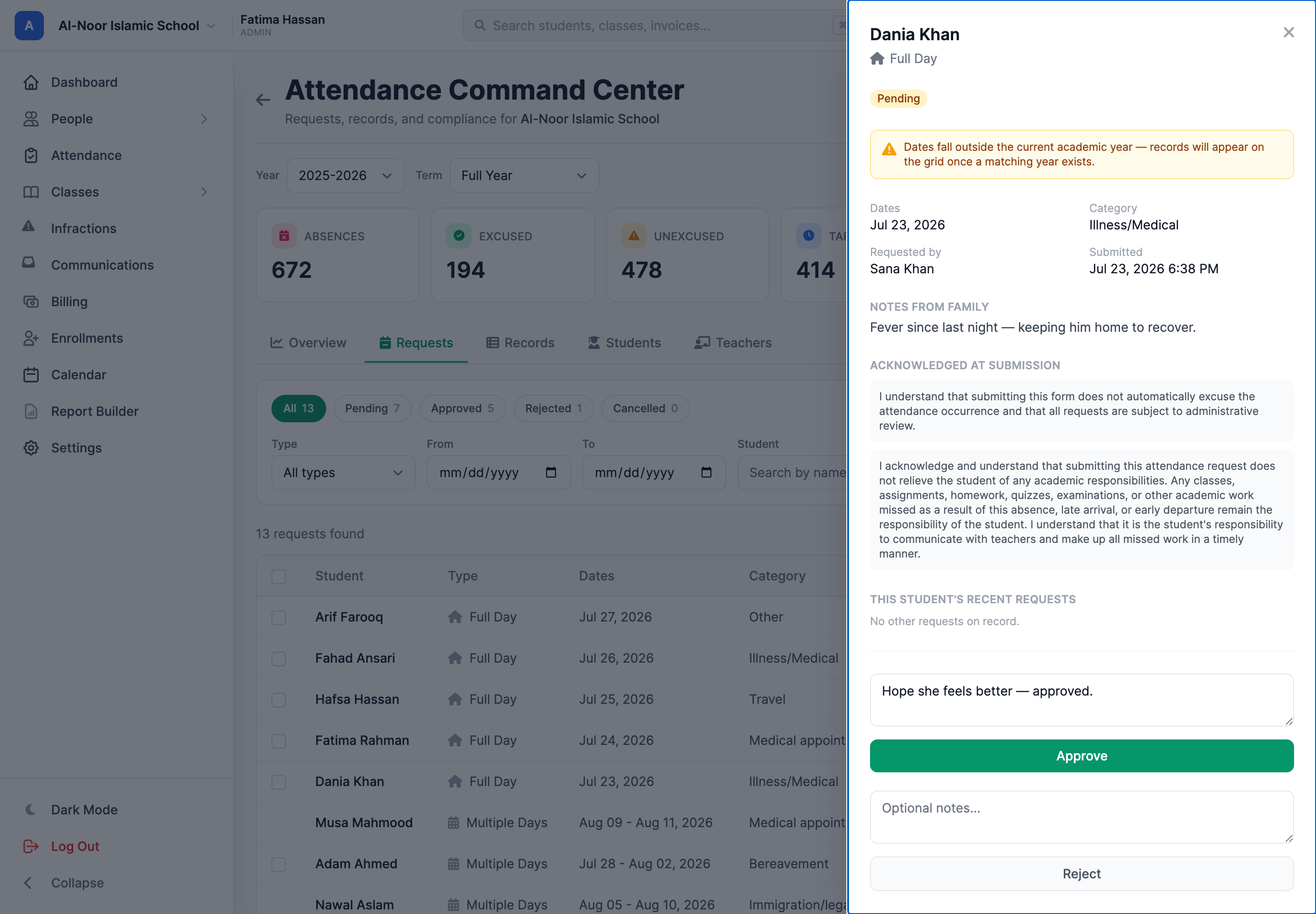
The heart of it is the drawer. Click any request and a slide-over opens with everything you need to make the call: the dates, the category, who asked, the family's note, and — importantly — the exact acknowledgment text the family agreed to at submission, frozen as it read that day, so there's never an argument about what was understood. It lists the student's recent requests too, so a pattern is obvious. Type a note — "hope she feels better," or "please reschedule, that afternoon has an exam" — and hit Approve or Reject.
5. Records: every mark, searchable and exportable
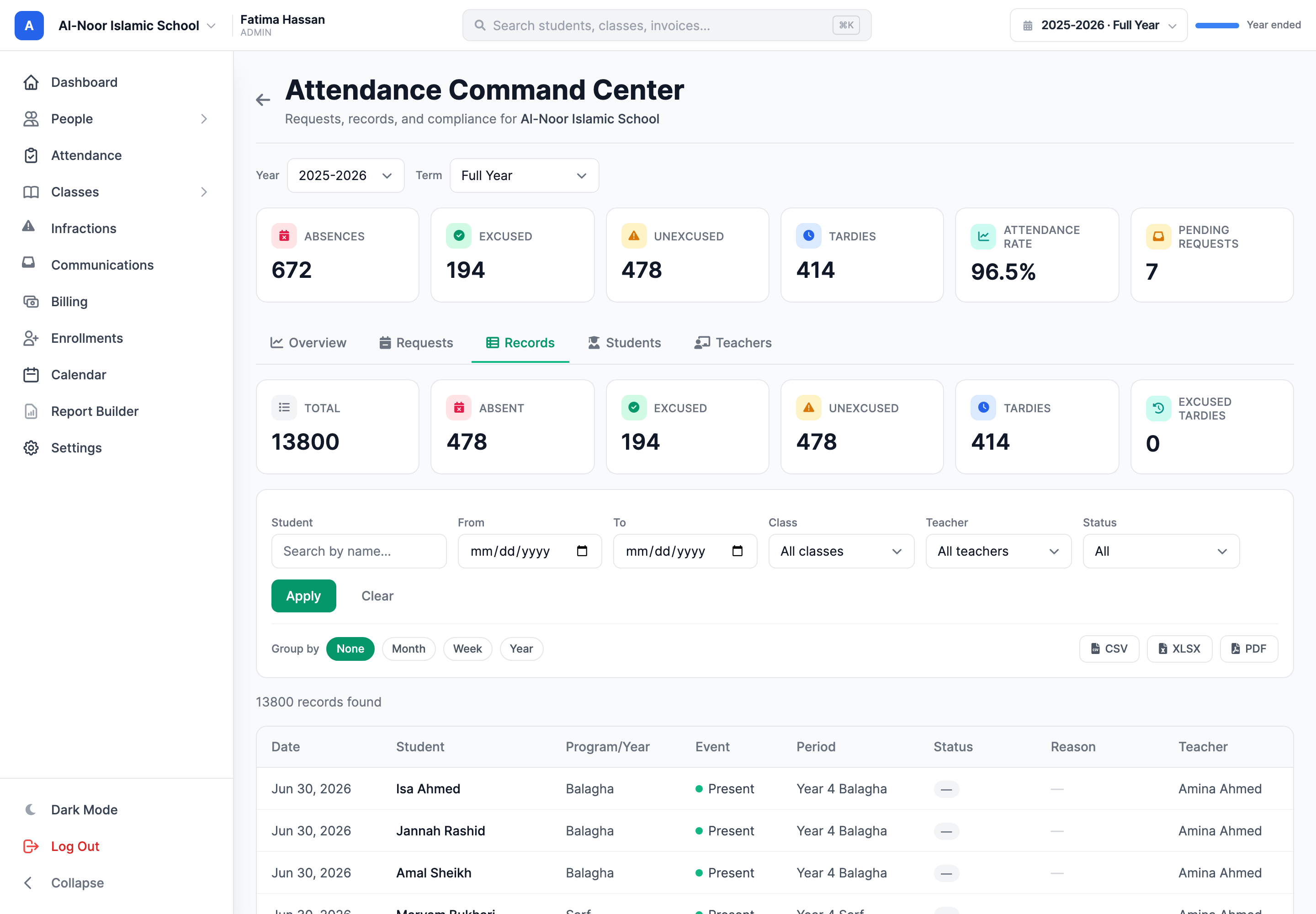
The Records tab is your attendance ledger — every mark in the school, in one table: date, student, program and year, event, period, status, reason, and teacher. Combine the filters — a student, a class, a teacher, a date range, a status — and the summary tiles above recount instantly: total marks, absences, excused, unexcused, tardies, excused tardies. Group by month, week, or year when you want shape instead of detail. Our demo year holds 13,800 marks and the table doesn't blink. When you need it out of the system, it exports to CSV, XLSX, or PDF in a click, honoring whatever filters you've set.
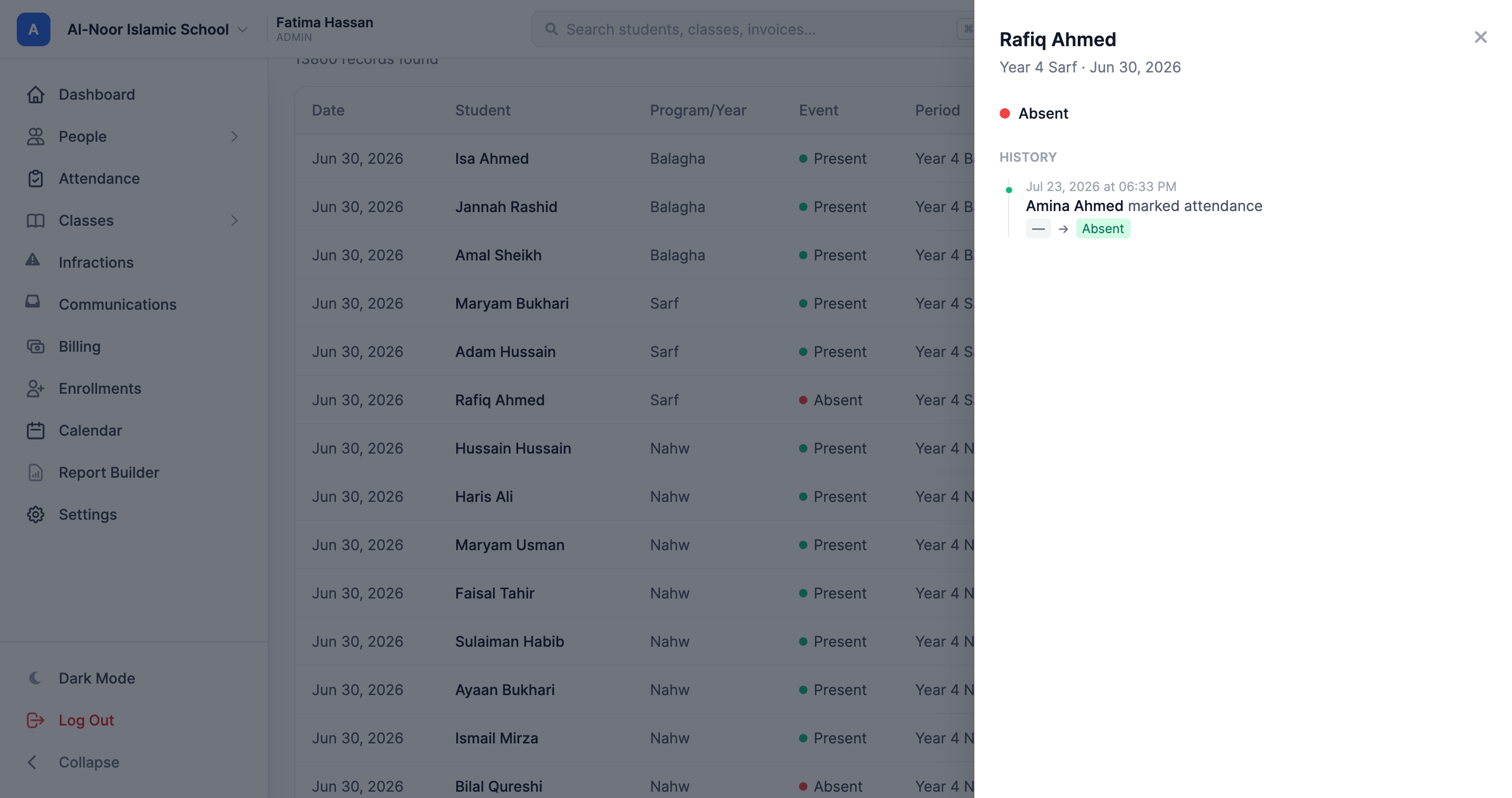
And every row can answer for itself. Click a record and a timeline slides out showing the mark's history — when it was recorded, by whom, and every change since. When a parent asks "who marked my son absent, and when?", that's a ten-second lookup, not an investigation.
6. Students: one profile per child
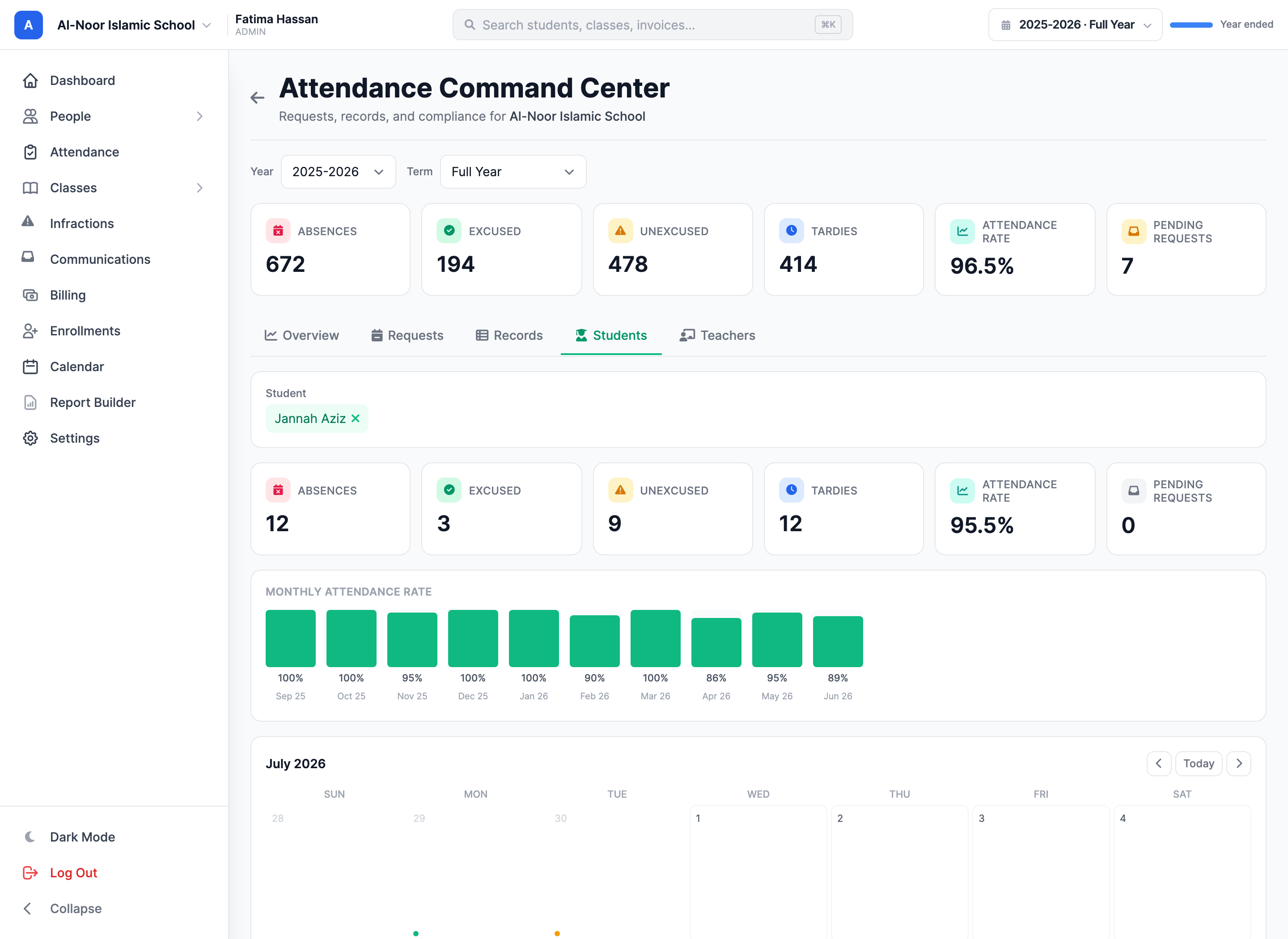
Need to answer "how's this student actually doing?" The Students tab pulls up a single profile: their own stat cards, a month-by-month view of their attendance rate, a calendar you can page through, and their full record and request history in one place. It's the view you want open when a parent calls, or when you're deciding whether a run of "appointments" has become a pattern.
7. Teachers: is attendance even done?
The other question every morning is "did everyone take attendance?" The Teachers tab answers it. Pick a day and you see every class scheduled that day, who was supposed to take it, whether it's been Taken or Not taken, exactly who marked it and when, and the headcount — with a badge when a student attendance taker did the marking rather than staff. Switch to Historical and the same tab becomes a compliance table: expected vs. taken vs. percentage per teacher over any date range, with a trend line and its own CSV. It's gentle accountability that makes chasing down the one class that forgot a two-second job.
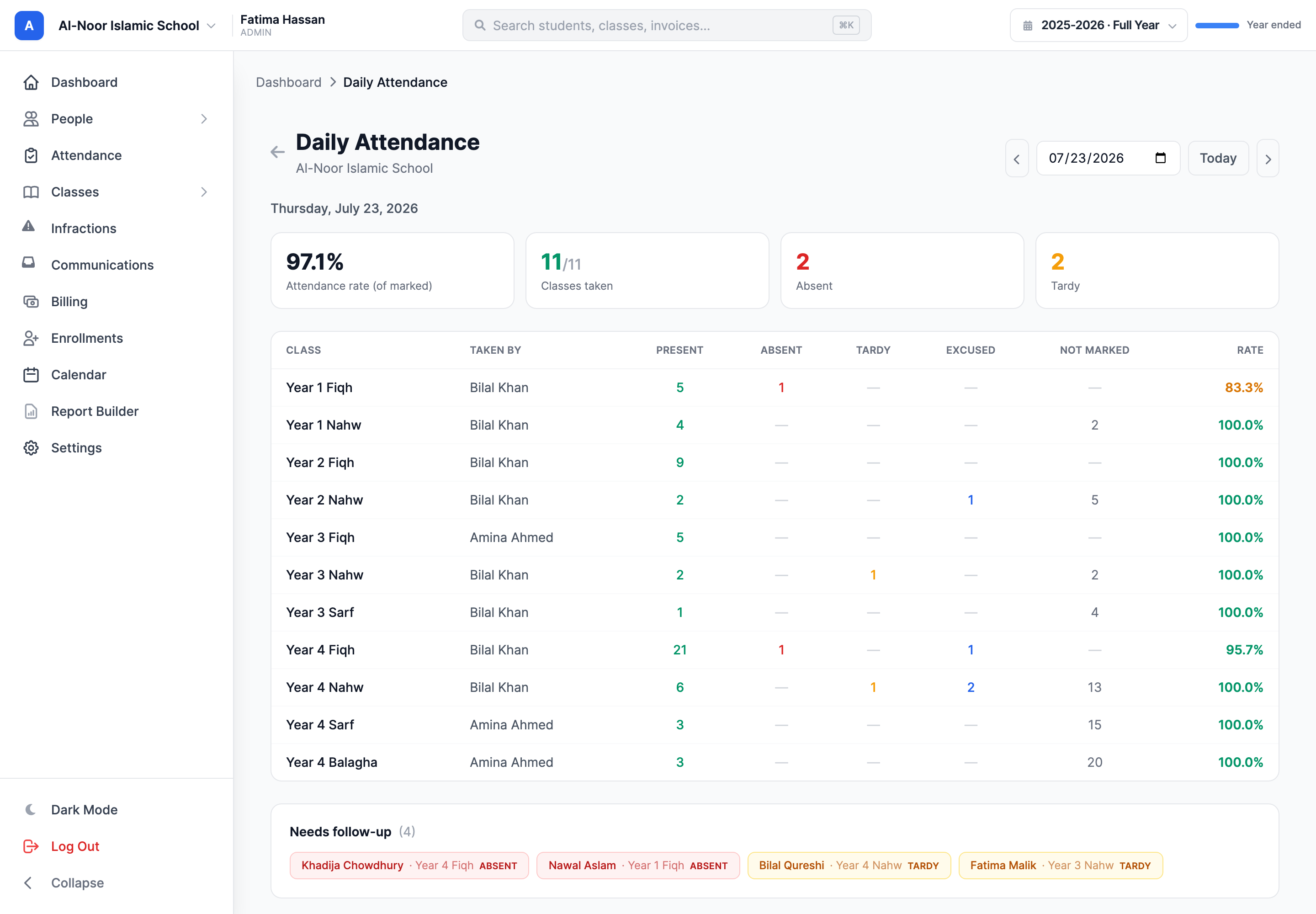
And for the office's morning sweep there's the Daily Report, one click away from that same tab: one page, one date, every class in the school with who took it, its recorded count, a per-status breakdown, and a Needs follow-up strip listing the students who were absent or tardy. "Did we take attendance today, and who do I need to call?" — answered before the first coffee refill.
8. Back on the grid, the loop closes
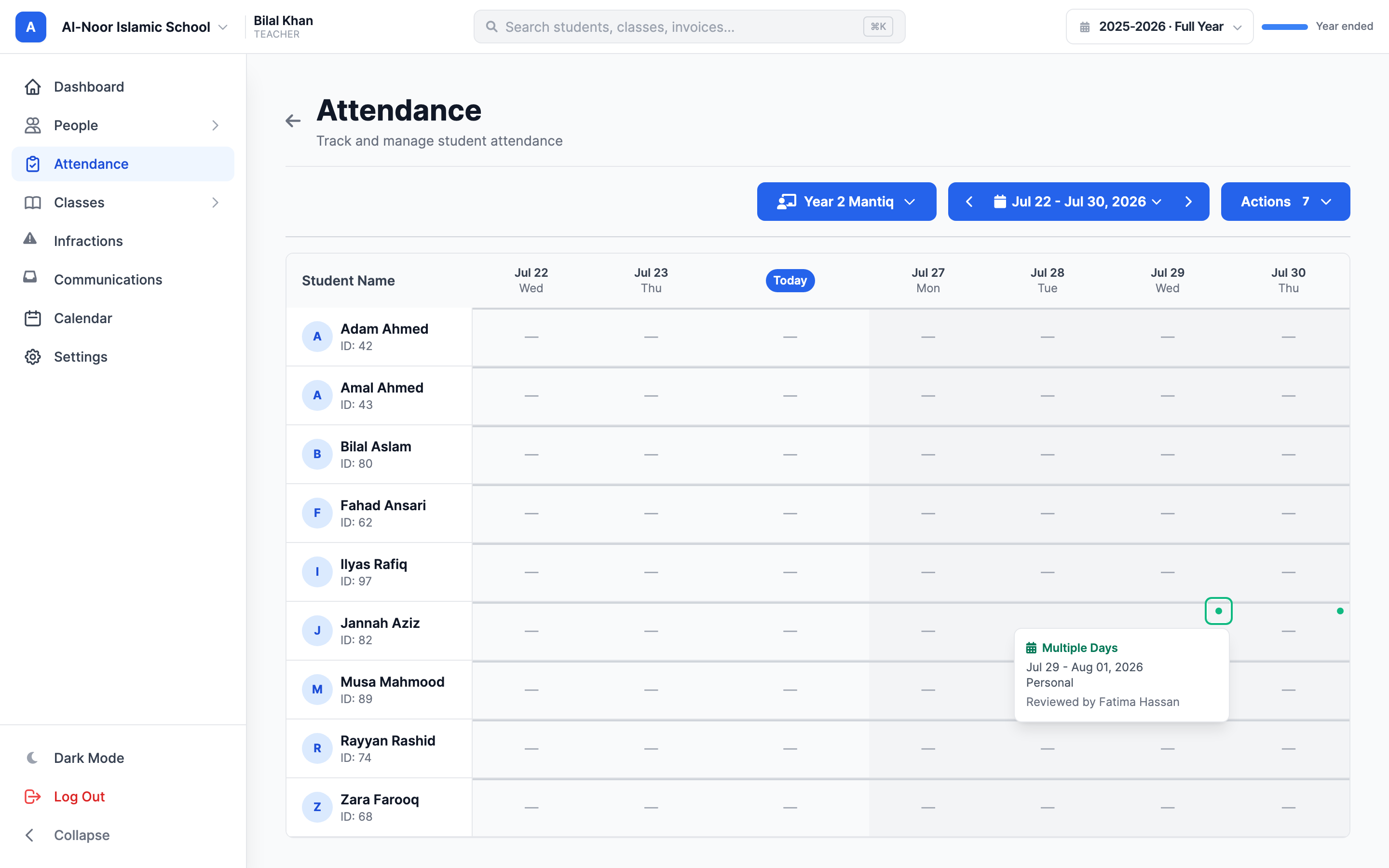
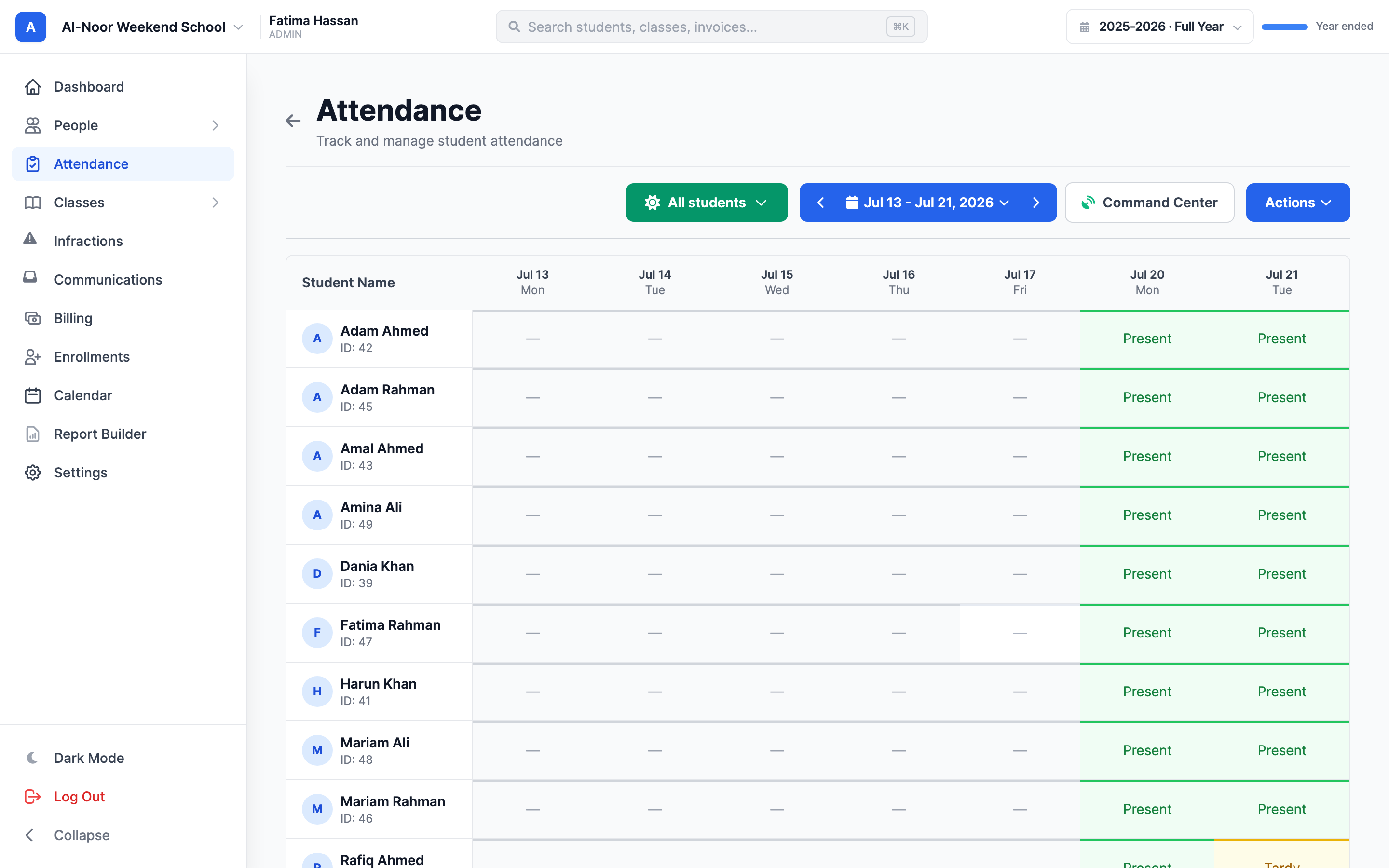
Here's the part that makes all of this trustworthy: an approved request doesn't just live in a queue — it shows up on the teacher's attendance grid. Every covered day wears a small emerald dot, and hovering it pops a card explaining why the student will be out: the type, the dates, the reason, and who approved it. The teacher never has to wonder whether an empty seat is a problem or a planned, approved absence — and on days with approved absences, teachers get a quiet heads-up banner above the grid naming who'll be out.
9. The settings that drive it
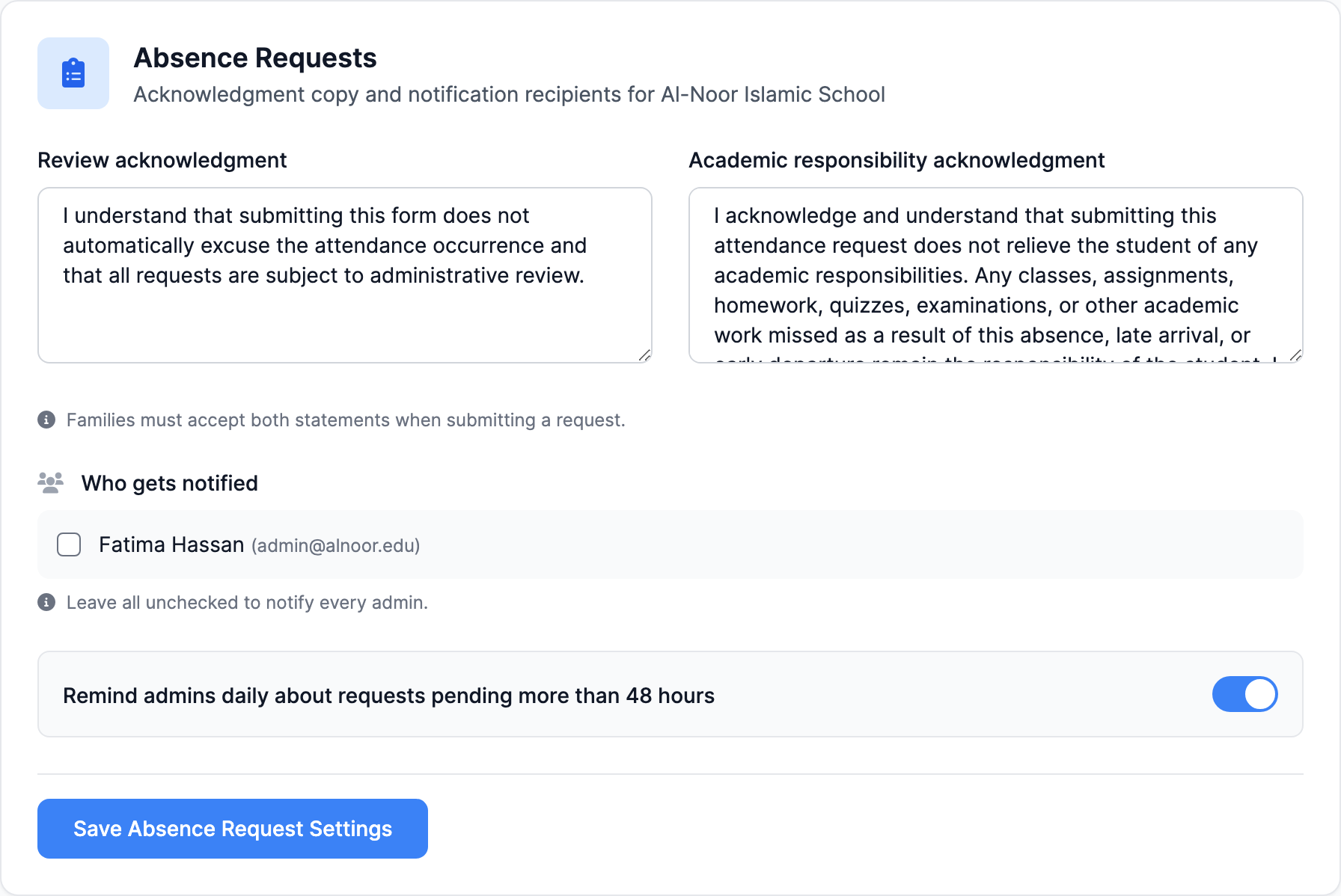
All of this behaves the way your school decides. In Settings → Attendance, the Absence Requests panel holds the two acknowledgment statements — your wording, so the policy the family agrees to is your policy, in your voice — plus exactly which admins get the new-request emails, and the 48-hour stale-request reminder toggle.
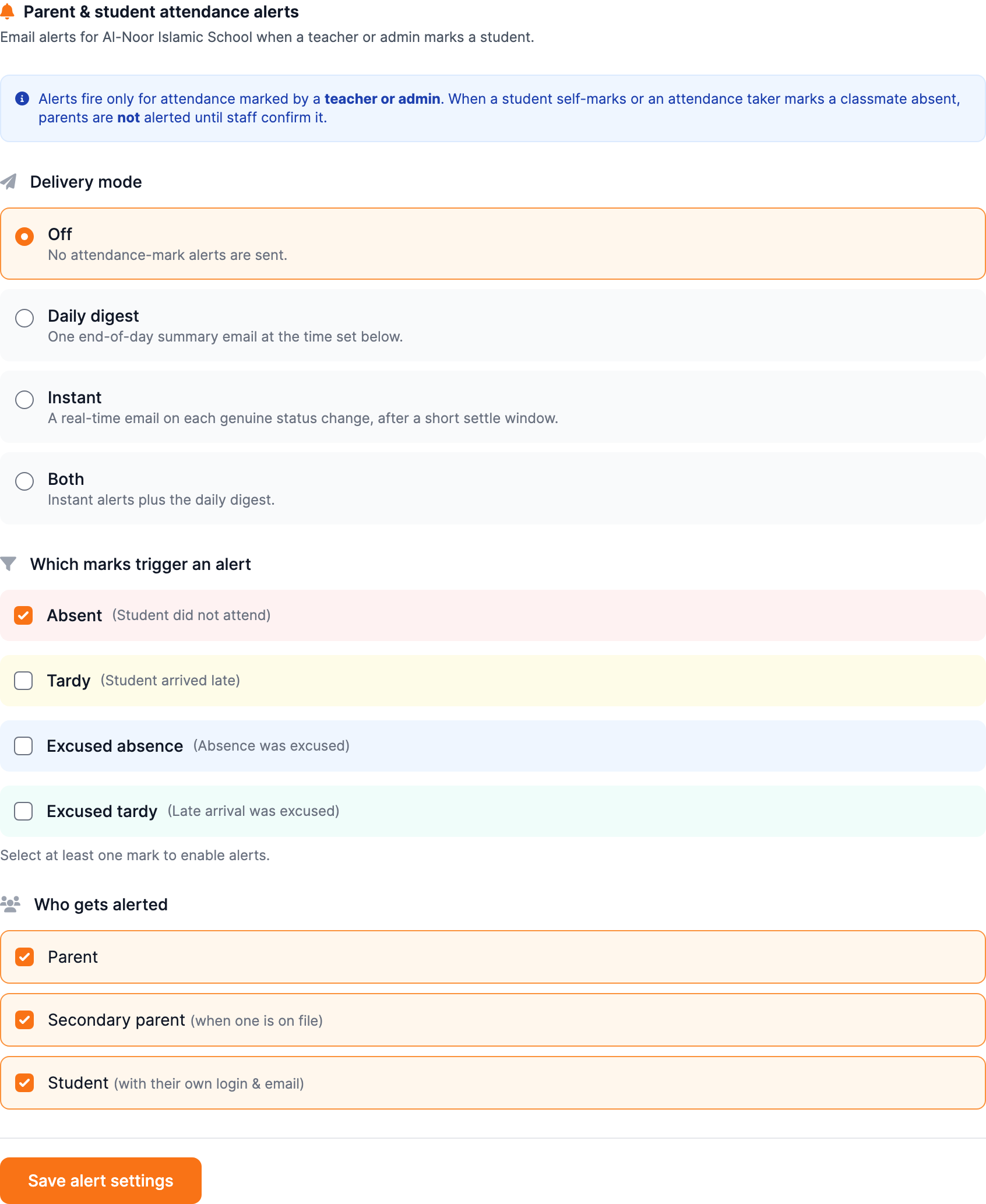
Right above it live the attendance alerts that families rely on: pick the marks that should trigger an alert (absent, tardy, excused, excused tardy), who gets alerted, and how — instant emails, a daily digest, or both. Instant alerts wait a configurable settle window so a quick correction cancels the email, and SMS can ride along with its own delay so a teacher fixing a mistaken "absent" never triggers a text. One rule is baked in and can't be misconfigured: only a teacher or admin mark ever alerts a parent — a student self-mark or an attendance taker's mark waits for staff to confirm. And because approvals write excused marks, a family whose request was approved a week ago never gets a "your child was absent" alert for that day — the loop is closed at the source.
10. The rest of the attendance toolbox
Command Center sits on top of an attendance system that already bends to how real schools run, and it's all configured per school from the same Settings tab:
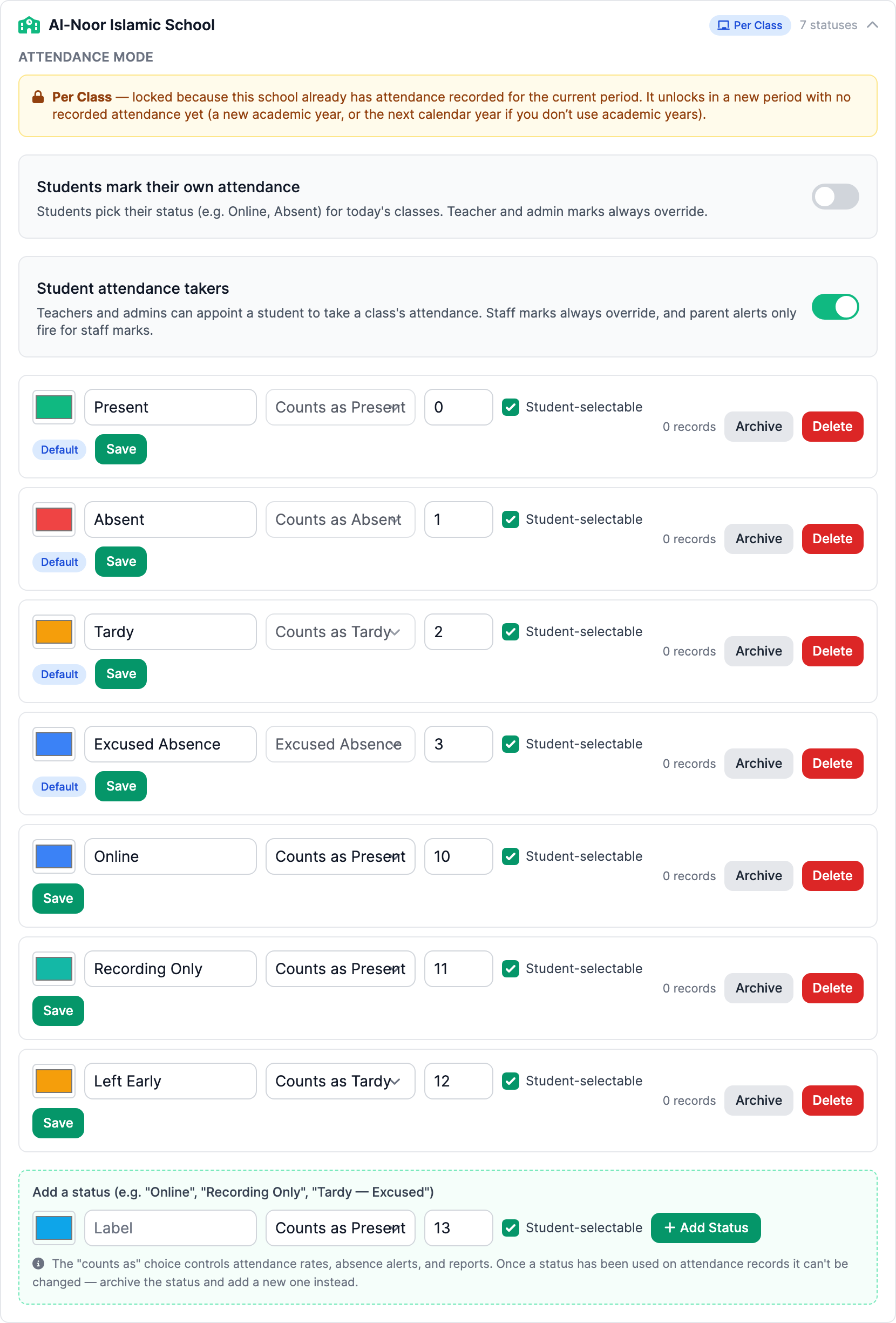
- Custom statuses. Present, Absent, Tardy and Excused are built in — but our demo school also marks Online, Recording Only, and Left Early, each with its own color, each rolling up to a base status so the stats stay honest.
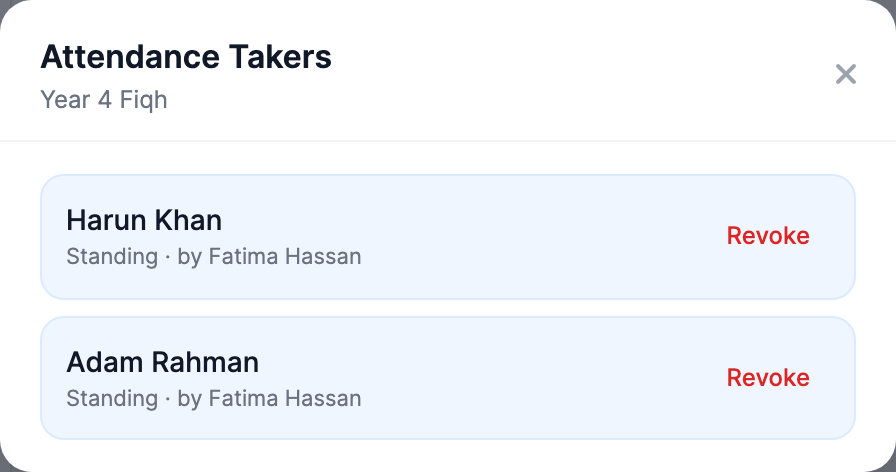
- Attendance takers. Appoint a trusted student to take attendance for a class — a standing grant or a date window, revocable any time. Their marks are labeled as delegate-taken, so provenance is never lost.
- Student self-marking. Flip one toggle and students check themselves in from their own dashboard. Self-marks are flagged as such, and parent alerts hold until staff confirm — trust, with a paper trail.
- Daily mode vs. per-class mode. A full-time school takes attendance per class; a weekend school just needs "who's here today." Each school on your account picks its own mode — daily mode gives you one whole-school roster per day instead of a grid per class.
It's built for the phone
Admins don't run a school from a desk, so Command Center works just as well on a phone — the KPI strip stacks, the tabs stay put, and you can approve a request from the pickup line.
That's Command Center: one place where a family's request becomes an email, becomes a two-click decision, becomes a flagged day on the grid — with the whole school looking at the same record the entire way through. No sticky notes, no "did the office get my message," no absence alerts for kids who were excused a week ago. Just attendance that finally tells the truth.
Command Center is live for every school on MarkTrack — open Attendance → Command Center and it's already full of your data. If you'd like a walkthrough on your own roster, talk to us.
Related reading
Interested in trying out MarkTrack for free?
Get in touch